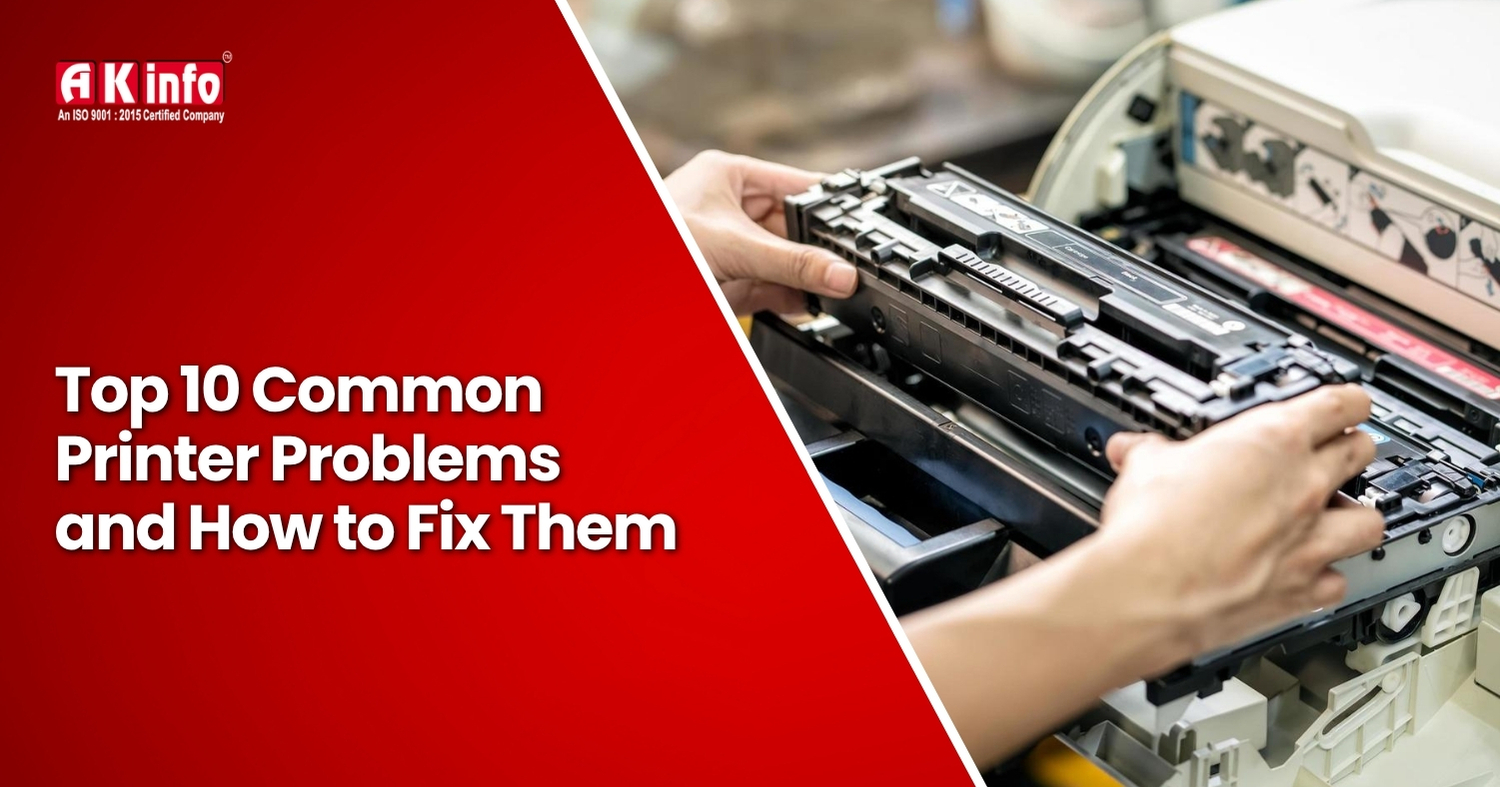
Top 10 Common Printer Problems and How to Fix Them
Have you ever clicked on "Print" with the printer making all sorts of noises but doing nothing at all? Did it print a blurry page output, or worse, print a completely unrelated document? The printer assists us in school projects, office tasks, and stunning photography. But these same printers sometimes cause problems. The good news is that you can resolve the most common printer issues in a short amount of time at home.
This blog covers the 10 most common printer problems and offers timely solutions. If you have a problem like "the printer won't print" or "the colors are wrong," you can find all the solutions here!
1. Paper Jam
The most annoying problem in every office is paper stuck in the printer. We call this problem interposing paper. Paper interposition can occur in several ways: it may be wrinkled, too thick, or loaded incorrectly. Upon a paper jam, the printer ceases to operate until you remove the jammed paper.
Solution
For starters, switch off the printer and open the paper tray. Gently pull out the jammed paper. Should it tear, attempt to remove all the little bits. Upon paper removal, fill the tray with sheets that are flat and clean. Switch on the printer and try printing once more, which will most likely resolve the problem. Always use the right paper to avoid common printer issues like this one.
2. Slow Printing
Slow printing can be annoying, it might happen because the quality setting of your printer is set too high. If you are working on Wi-Fi, it could happen that the printer was very far away from the router.
Solution
Choosing the Draft or Normal mode for printing will speed up the printing procedure. Avoid picking the Best Quality option. Moving your printer closer to the router will improve Wi-Fi connection quality. Fixing these can put a stop to slow printing and make your printer work quickly now.
3. Printer Not Printing
Sometimes, your printer won't print. You click the print button, but nothing happens. This issue can be very confusing.
Solution
First, check if someone has switched on the printer and plugged it in or connected it to Wi-Fi. Make sure there is paper in the tray and ink in the cartridges. Check the print queue. Old jobs often block new ones. Clearing it can help fix common printing problems.
4. Low Ink Warning When Ink Is Full
Sometimes, the printer warns that the ink is low, even if the cartridge is new. This is another very common problem that confuses a lot of people. The printer is not reading the cartridge in the correct manner. It can go wrong if someone doesn’t install it right. Also, contaminants can disrupt the printer's sensors. Some printers have chips inside the cartridges that need to be reset upon changing the ink.
Solution
Take out the cartridge from the printer. Give the copper or gold contacts a gentle wipe with a soft, dry cloth. These contacts are for the printer's reading of the cartridge. Return the cartridge with a strong push into its holder. Reboot the printer and check. If you still get the low ink warning, try resetting the ink levels through your printer's settings. This trick can solve a big printer problem. It helps your printer recognize full cartridges accurately.
5. Poor Print Quality
The quality of the printing becomes poor when pages appear faded streaky or blurry. Printing quality problems can happen for a few reasons: low ink, wrong paper, dirty print heads, or computer setup issues.
Solution
Choose the paper type you will use and select the best printing quality. If you discover that ink is low, it would be good to change cartridges. Run a cleaning cycle for your print heads to remove any buildup of dirt. Be sure to use very good quality printing paper. This will help ensure that your entire prints return to clarity and sharpness.
6. Wi-Fi Connection Issues
The printer may lose Wi-Fi connectivity at times, which causes it to show offline in the system. The printer might lose connection due to slow internet speeds. It can also happen if the printer is too far from the router.
Solution
Try restarting the printer and your Wi-Fi router. Ensure your printer connects to the same network that your computer uses. You can restore the printer connection by selecting the wireless setup function available through the menu. If nothing else works, you can connect your printer using a USB cable. This creates a direct link between the printer and your computer.
7. Printing the Wrong Document
You may notice unwanted printouts. This happens because old print jobs are still in the printer's queue. The printer might print files sent by someone else. It could also be that the wrong document was selected for printing.
Solution
Check the print queue. Cancel all print jobs. Then, print the correct document and choose the right printer. This ensures the right file prints, so nothing unwanted comes out by mistake.
8. Printer Driver Issues
The software driver is an intermediary between your printer and your computer. If the printer is outdated or faulty, it may not work at all.
Solution
Go and download the latest driver from your printer manufacturer's official website. After downloading, install it on your computer. Then, restart both the printer and the computer. This should be the fix and allow your printer to function without any issues once again.
9. Cartridge Not Recognized
Sometimes, the printer shows an error. The message states that the system cannot detect the ink cartridge when you install a new one. This is a common issue. It usually means the cartridge isn’t installed correctly or the metal contacts are dirty.
Solution
Take out the cartridge and check for stickers or covers that may be present on it. Remove them if there are any. Take a soft cloth; wipe the contacts of the cartridge, which are gold or copper-colored, with care. Insert the cartridge with strong pressure. Turn the printer off and on again to encourage recognition of the cartridge.
10. Color Not Printing Correctly
Wrong colors on the printout or no color at all show a problem with color printing. The low ink level or clogged nozzles may be the cause.
Solution
The first thing to do would be to check the links to confirm if any of the color cartridges are empty. Go into printer settings and print a test page; if necessary, clean the print heads as well. Then, check if you have selected the correct color settings while printing. This way, your prints will have the right bright colors.
Conclusion
Printers help us in many ways, whether for school assignments or office tasks. The downside is that these printers can stop working without warning. This can be very upsetting. The good thing is that most printer problems are easy to fix if you know the tricks of the trade. Paper gets stuck in the tray, or it is not printing at all; each issue has its easy fix. Just check the ink, settings, paper, and connections. Your printer should be up and running again. Maintenance will ensure your printer remains in good condition.
Frequently Asked Questions
Clean the contacts, then power cycle the printer. This will help it detect the cartridge with accuracy.
Check ink levels. Then, clean the print head. Also, choose the right paper type in the printer settings.
Turn off and then turn on both the printer and Wi-Fi. Check that they are on the same network. After that, connect using the printer menu options.
The printer can't see the cartridge. So, remove it and clean the contacts. Then, place it back properly.
Join Our Printer Repairing Course in Bihar – Available in Multiple Cities!
If you are looking for a good printer repairing institute in Bihar, then AK Info Institute is the best for you as it offers printer repairing courses in various cities of Bihar, including Patna, Bihar Sharif, Muzaffarpur, Hajipur, Chapra, Siwan, Motihari, Bettiah, Darbhanga, and Purnia. Each centre offers expert-led training, practical exercises, and career support to help you succeed in the Printer repair industry.
Enroll NowPatna Center
A.K.Info 3rd Floor Opposite Hp petrol pump Near Voltas Show Room Kumhrar (Main Raod) Patna-800026
Email [email protected]
Contact no. :- +91-95255 55455, 9708441666
Delhi Center
AK Info Institute 5/63 UG Floor, Karol Bagh, New Delhi, Delhi
Landmark: Harnam Singh charitable Medical Centre
District: CENTRAL
DELHI State: DELHI-110005
Email [email protected]
Contact no. :- +91- 95255 55455, 9708441666