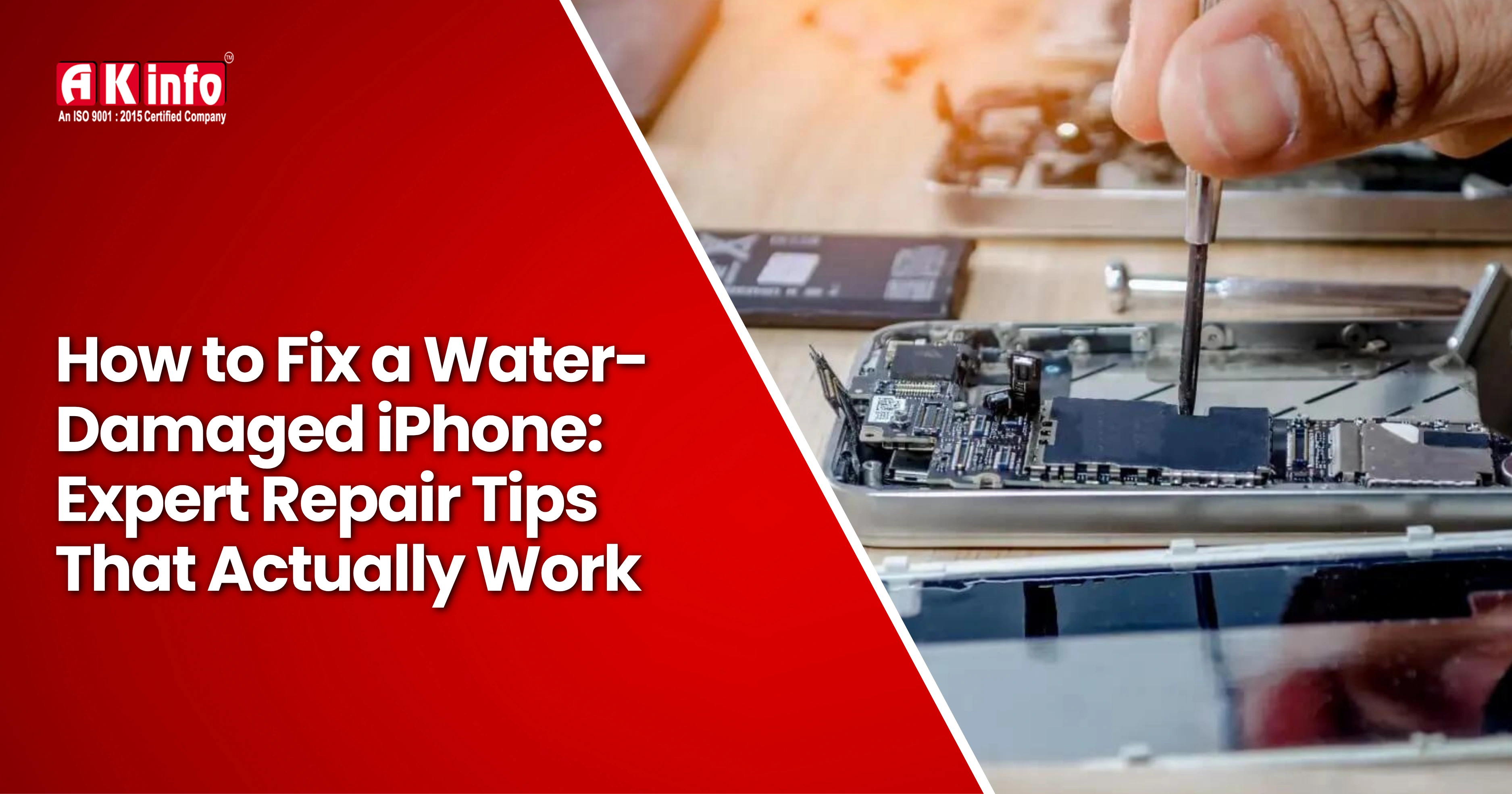
How to Fix a Water-Damaged iPhone: Expert Repair Tips That Actually Work
Dropped your iPhone in water? Don’t panic! Learn how to repair a water-damaged iPhone step-by-step, from what to do immediately to professional repair options.
Water damage is one of the most common (and scariest) phone accidents.
Even though newer iPhones are water-resistant, they’re not entirely waterproof. A few seconds of carelessness can cause severe internal damage if not handled properly.
But here’s the good news: you can often save a water-damaged iPhone if you act quickly and follow the right steps.
In this guide, we’ll walk you through how to repair a water-damaged iPhone, what to avoid, and when to seek professional help.
Step-by-Step Guide to Repair a Water-Damaged iPhone
Accidents happen, maybe your iPhone slipped into a sink, got splashed by rain, or took an unexpected dive into the pool. The good news is that immediate and careful action can make all the difference.
Follow this detailed step-by-step guide to give your iPhone the best possible chance of recovery. These steps will help you.
Step 1: Turn Off Your iPhone Immediately
If your iPhone fell in water, don’t try to switch it on or press any buttons. Water and electricity are a dangerous mix; powering it on could short-circuit the internal components.
What to do instead:
- Turn it off immediately if it’s still on.
- If it’s off, don’t turn it on to “check if it’s working.”
- Disconnect any accessories (such as headphones or a cable).
- The faster you power it off, the higher the chances of saving it.
Step 2: Remove the SIM Card and Accessories
Water can easily reach internal ports, including the SIM slot, so your next move should be:
What to do instead:
- Take off the phone case.
- Remove the SIM card and SIM tray.
- Disconnect any cables or external attachments.
- If your phone fell in salt water, rinse the exterior lightly with clean, fresh water before drying, as salt can quickly corrode metal parts.
Step 3: Gently Dry the Outside
Before worrying about the inside, remove as much surface water as possible.
What to do instead:
- Gently dab with a lint-free cloth around the button, charging port, and speakers.
- Tilt the phone slightly to let excess water drain out naturally.
- Don’t use a hair dryer or heater; heat can damage the internal components.
- Don’t shake the iPhone; it can push water deeper inside.
Step 4: Let It Air Dry (Patience Pays Off)
Once the outside looks dry, it’s time to let your iPhone breathe.
What to do instead:
- Keep it in a dry, ventilated area.
- You can use a fan to circulate air around it for faster drying.
- If you have silica gel packets, place your phone and a few packets in an airtight container for 24-48 hours. Silica gel absorbs moisture more effectively than rice.
Step 5: Skip the Rice Myth
You’ve probably heard the old “put your iPhone in rice” trick, but here’s the truth: Rice doesn’t actually fix water damage.
It can absorb some surface moisture, but not the water trapped inside delicate parts like the screen or logic board. Plus, tiny rice particles or dust can get stuck in ports, creating more problems later.
Step 6: Wait At Least 24 to 48 Hours
This might be the hardest part: wait at least 24-48 hours before turning your iPhone back on. Rushing this step is the main reason people permanently lose their phones after water damage.
You can try turning it on after two days, but if it doesn’t start:
What to do instead:
- Don’t panic, try charging it with an Apple-certified charger.
- If it still doesn’t respond, proceed to the next step, which can help you.
Step 7: Check for Signs of Water Damage
Apple includes Liquid Contact Indicators (LCI) in iPhone's small sensors that turn red when exposed to water.
Here’s how to check:
- Find your iPhone model’s SIM tray location.
- Remove the SIM tray and look inside with a flashlight.
- If you see red, water has reached inside.
- If it’s still white or silver, you might be lucky; it’s likely safe.
Step 8: Try Software and Hardware Recovery Options
If your phone turns on but isn’t working properly, here’s what you can do:
For software issues:
- Backup your data immediately via iCloud or iTunes.
- Try a factory reset if the phone is lagging, freezing, or showing screen glitches.
- Update your iOS to the latest version; it can sometimes fix minor post-damage bugs.
For hardware issues:
- If you can’t hear the sound properly, your speaker might be wet. Try gently tapping the iPhone with the charging port facing down to let water escape.
- If your charging port doesn’t work, let it dry longer; moisture can block charging temporarily.
- Avoid plugging it in for at least 48 hours.
Step 9: When to Visit a Professional Repair Centre
Sometimes, even after all these steps, your iPhone might still not function properly, especially if water has reached the battery, logic board, or screen connectors. Using genuine parts during replacement is crucial for long-term performance and safety. You can learn more about the benefits of using genuine parts in mobile repair to understand why it’s worth the investment.
That’s when it’s time to seek professional help.
Professional technicians use specialised tools such as ultrasonic cleaners and precision screwdrivers to restore water-damaged phones.
If you’re curious about what professionals use in their toolkit, check out our detailed guide on the essential tools for mobile repairing training.
- Open your iPhone safely and clean internal corrosion.
- Use ultrasonic cleaning machines to remove water residue.
- Replace damaged parts (battery, connectors, or screen).
- Restore or recover your data if possible.
Apple Service Centres may replace your iPhone (depending on your warranty and AppleCare+ plan). However, there are many third-party repair options too.
Step 10: Prevent Water Damage in the Future
Once your iPhone is saved or repaired, you’ll never want to repeat this nightmare. So here’s how to protect it in the future:
Smart Prevention Tips:
- Use a waterproof case (especially near pools, beaches, or rain).
- Avoid charging your phone in damp areas.
- Keep it away from bathrooms and kitchen sinks.
- Consider a waterproof pouch for travel or the monsoon season.
- Newer iPhones are water-resistant, but even then, avoid full submersion or exposure to saltwater and soap water. Resistance decreases over time.
Key Takeaways: How to Save Your iPhone from Water Damage
Here’s a quick summary you can bookmark:
- Turn it off immediately.
- Remove the SIM card and accessories.
- Gently dry the exterior.
- Let it air dry for 24-48 hours.
- Avoid rice and heat.
- Check for water damage indicators.
- Visit a professional if it doesn’t start.
Conclusion
Water damage isn’t always the end of your iPhone’s story, but it depends on how fast and smartly you act. The key is to stay calm, avoid panic moves like turning it on or using heat, and panic moves like turning it on or using heat, and let the drying process do its job.
If your iPhone still shows signs of trouble after 48 hours, take it to a certified repair shop. The sooner you get expert help, the better your chances of recovery.
If you’re passionate about fixing phones or want to turn your repair skills into a profession, you can join our Mobile Repairing Course in Patna. This hands-on training helps you learn advanced techniques such as water-damage repair, circuit troubleshooting, and chip-level servicing from industry experts.