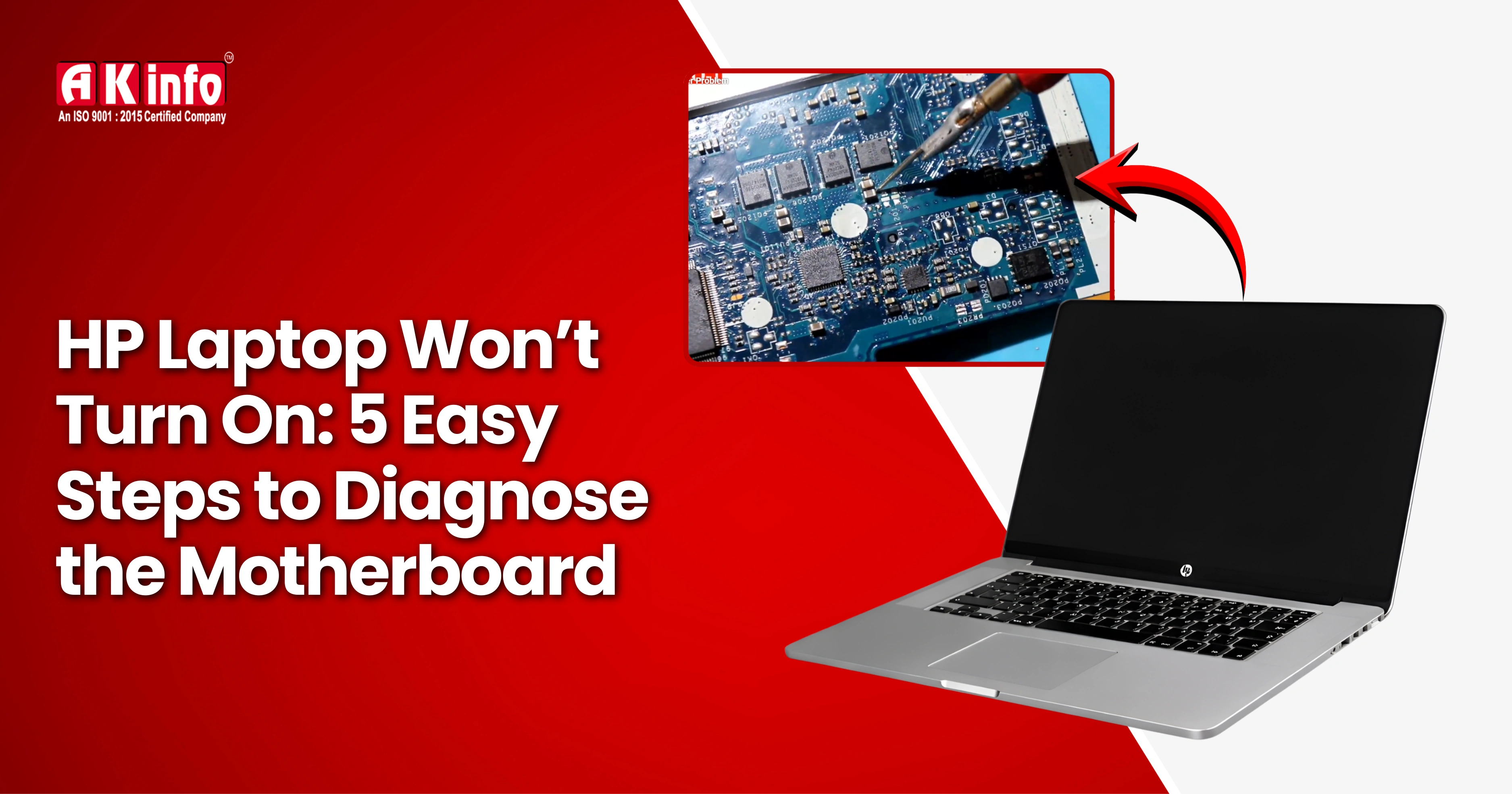
HP Laptop Not Turning On? The Ultimate 5-Step Motherboard Diagnosis Guide.
Is your HP laptop simply dead, not powering up, with no display on the screen, no lights, and no spinning fan? So, don’t worry and don’t panic. However, in many cases, the problem is not as big as you think. One of the most basic and frequent reasons a laptop won't turn on is usually a motherboard failure.
The reason for this is that the motherboard controls both the power flow and the ability of the laptop to charge; the motherboard also manages communication between the various laptop components, so if there is some small fault in the motherboard, the entire laptop may fail to boot up.
While it's easy to decide to replace your laptop or spend lots of money trying to fix it, you should first try to determine why your HP laptop is not turning on.
The purpose of this diagnostic tool is to help you diagnose your laptop's motherboard problems using a series of steps to eliminate other possible causes of the problem, such as a simple power glitch, faulty accessories, charging issues, or a more serious motherboard malfunction.
Once you complete each of these diagnostic tests, you'll have a good idea of the root cause of the problem, and you will then know exactly what to do next with your HP Laptop.
Understanding Motherboard-Related Power Issues in HP Laptops
Step 1: Perform a Basic Power Reset
Sometimes, the problem is not the motherboard but a temporary power glitch. A simple reset can solve the problem without any technical repair.
How to do it:
- Disconnect the charger.
- Remove the battery (if it’s removable; otherwise, skip).
- Press and hold the power button for 15–20 seconds.
- Reconnect the charger and try turning it on again.
If the laptop turns on now, the issue was just a power drain, not the motherboard.
Step 2: Check the Charger, Charging Port & DC Jack
A faulty power adapter or damaged DC jack can mimic a motherboard failure. Your laptop can’t turn on if it’s not getting proper power. A loose or damaged jack is way more common than you think.
Check your charger:
- Is the LED on the adapter glowing?
- Does the charger heat up normally?
Check the DC jack:
- Wiggle the charger pin gently.
- If the charging LED blinks or disconnects easily, the DC jack may be loose or broken.
If power isn’t reaching the motherboard, the laptop won’t turn on.
Step 3: Test for Motherboard Power Response
Even a tiny blink, fan spin, or charging light tells you the motherboard is at least trying to start.
Look for these signs:
- No LED indicator at all
- The LED turns on for a second and goes off
- Fan spins for a moment, then stops
- No charging light, even with a working adapter
These symptoms often indicate:
- Short circuits
- Power IC issues
- Damaged MOSFETs
- Faulty BIOS
If you see one of these signs, your motherboard needs a deeper diagnosis.
Step 4: Check RAM, CMOS Battery & External Components
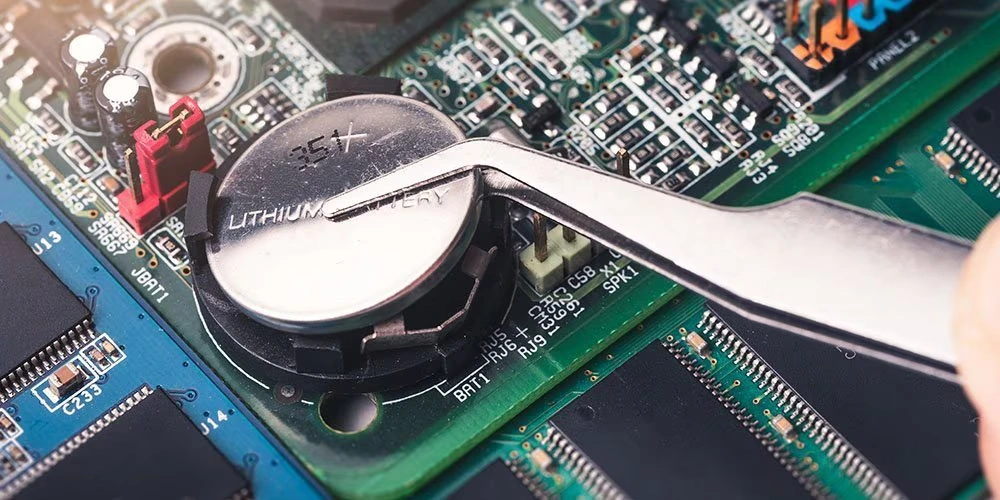
Faulty external components can prevent the motherboard from booting. Cleaning or reseating the RAM often makes the laptop turn on instantly.
Remove and reinsert the RAM:
- Remove the RAM stick
- Clean the golden pins with a microfiber cloth
- Reinsert firmly
If the RAM is faulty, the laptop may not turn on at all.
Check the CMOS battery:
A dead CMOS battery can cause BIOS failure, resulting in no-power or no-display issues.
Disconnect unnecessary parts:
- Hard drive / SSD
- Wi-Fi card
- Keyboard
- USB devices
If the laptop turns on after removing an accessory, that component was causing the short.
Explore a professional laptop repairing course to learn motherboard diagnosis, chip-level repairs, and practical skills needed to build a successful career in laptop repairing.
Step 5: Inspect the Motherboard for Faults (Advanced)
If nothing works, it’s time to check the motherboard directly, because there is a high chance that your system motherboard has a fault.
Common motherboard issues in HP laptops:
- Burnt MOSFETs
- Shorted capacitors
- Damaged BIOS chip
- Faulty charging IC
- Corrosion due to liquid damage
- Loose or broken connectors
What you can do:
- Look for burn marks on the board
- Smell for burnt components
- Check for corrosion around the charging area
- Use a multimeter to test for short circuits
Repair usually involves:
- Replacing MOSFETs
- Flashing the BIOS
- Changing ICs
- Reballing components
Only perform these if you have professional experience. Otherwise, take the motherboard to a repair technician.
When to Go for a Professional Motherboard Repair
- There is no power at all
- The motherboard overheats instantly
- You see burnt components
The fan spins, but the laptop shuts off immediately. You need a professional board-level repair expert.
- Diagnose shorts
- Check IC voltage lines
- Repair micro-components
- Restore BIOS
- Fix DC jack or power rail problems
Explore the signs of a damaged laptop charging port to gain in-depth technical knowledge and hands-on repair skills.
Conclusion
If your HP laptop won't turn on, don’t panic. Most of the time, the problem is not as serious as it looks. A small glitch, loose charger, or faulty RAM can cause the issue.
Always check the charger and DC jack first. Look for small signs of life. Don’t forget RAM and the CMOS battery. These small components can completely stop the laptop from booting.
Replacing the motherboard should always be the last option. Know when to call a technician if there is no power, overheating, or burnt components.
Following 10 Tips for Extending Your Laptop Battery Life helps prevent power issues and keeps your HP laptop running longer.
Frequently Asked Questions
Most machines operate on 220V AC (India) or 110V AC (US). Always check the label before connecting power.
Yes, but ensure it delivers at least 6–8 bar pressure and includes a moisture filter to keep the air dry.
A complete installation usually takes 2–3 hours, including testing and calibration.
Yes, a bubble remover machine is essential for perfect lamination. It removes microbubbles left after the main process.
Clean the machine daily, check filters weekly, and service the compressor monthly for best results.