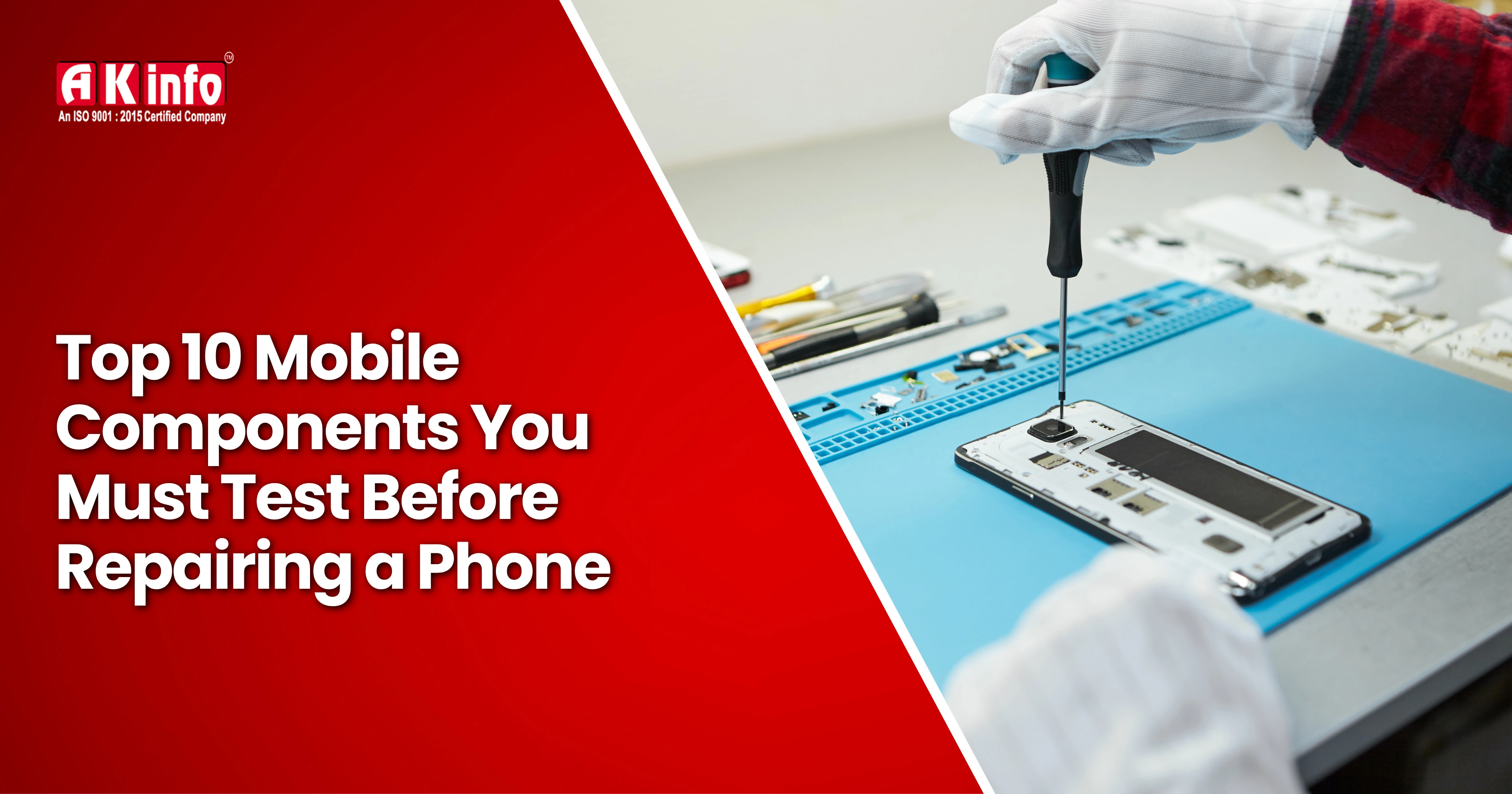
Top 10 Mobile Components You Must Test Before Repairing a Phone
Mobile repairing is not just about replacing ICs or changing parts. A real technician must know how to test PCB components correctly before doing any repairs. When a mobile phone comes to your shop with issues like not turning ON, fast battery drain, auto restart, or network problems, the first and most important step is to test the basic components.
Proper component testing helps identify the root cause, prevent wrong part replacements, and ensure the phone’s long-term stability. In this guide, you’ll learn the Top 10 Mobile Components every technician should check before repair, and how to test them accurately using a multimeter and other diagnostic tools.
If you’re new to the world of hardware repair, you can also check out our detailed post on Essential Tools for Mobile Repairing Training to make sure you’re equipped with the right setup before testing.
Top 10 Mobile Phone Components to Test Before Any Repair
Essential Pre-Repair component testing provides a clear transition into the numbered list and reinforces the importance of structured diagnostic work. Here are 10 components to test before repairing a phone:
1. Battery & Charging Port – The Power Source of the Device
The battery and charging port are the lifeline of any mobile device, responsible for powering all other components. Testing battery voltage, charge cycles, and current using a multimeter or diagnostic app helps reveal issues like rapid drain or inability to charge. Check both the battery and charging port for faults before considering replacement.
If your client’s phone isn’t charging properly, our blog on Common Mobile Phone Issues and How to Fix Them covers practical steps for diagnosing such problems.
How to Test:
- Set the multimeter to DC voltage mode. A healthy battery usually shows between 3.7V–4.2V.
- Check the battery flex connector's pins for continuity and any signs of damage or heat.
- Use a diagnostic app (if the phone turns on) to check battery cycle count and health percentage.
Symptoms to Look For:
- Rapid battery drain
- Phone not charging
- Device not powering on
2. Touchscreen and Display Assembly
A phone’s display and touch sensor are vital for user input and interaction. Malfunctions may appear as dead pixels, screen flicker, or unresponsive touch zones. Use diagnostic tools to evaluate sensitivity, color accuracy, and touch response. Inspect for physical cracks and backlight issues.
Testing Tips:
- Use a touch test app to check sensitivity.
- Inspect the display connector for loose or bent pins.
- Use a multimeter to test backlight voltage.
- Check for shorts near display ICs using diode mode.
Test for:
- Unresponsive touch areas
- Screen flicker or blank display
- Brightness or color irregularities
If you often face such cases during training, learning under experts through our Mobile Repairing Course in Patna can help you gain hands-on experience with real display and touch circuit testing.
3. Camera Modules (Front and Rear)
Modern users rely on cameras for communication and documentation. Hardware tests and camera apps check for clarity, focus, and sensor activation. Physical inspection for debris and software tests for image distortion are equally important.
Testing Methods:
- Open the camera app to check clarity and autofocus.
- For hardware faults, check the camera voltage line continuity on the PCB.
- Inspect the lens area for dust or moisture.
- If the app fails to open, check the camera connector voltage using a multimeter.
Test for:
- Blurry or distorted images
- Camera app not opening
- Black screen while capturing
For camera-related troubleshooting, technicians must focus on identifying whether the issue is with the hardware or software—a skill covered extensively in our Mobile Repairing Training modules.
4. Speaker and Microphone
Audio components impact calls, voice commands, and media playback. Test both the loudspeaker and earpiece, as well as the microphone, by playing sounds and recording audio. Evaluate for distortion, low volume, or no audio at all.
Testing Steps:
- Use diagnostic codes (like #0# for Android) to test the speaker/mic.
- Check for continuity using buzzer mode.
- Clean the speaker terminals and the mic hole carefully.
Test for:
- No sound or distorted sound
- Mic not detecting voice during calls
- Intermittent audio
For beginners, understanding speaker and mic circuits can seem tough. Our experts at AK Info train students to diagnose these audio faults systematically using both multimeter and oscilloscope readings.
5. Charging and USB Port
A faulty charging or USB port is a frequent issue. Use a multimeter to assess voltage and test physical connectivity with genuine accessories. Look for loose connectors, corrosion, or intermittent charging.
Testing Tips:
- Check for voltage at VBUS (usually 5V) using a multimeter.
- Test the USB connector’s data pins for continuity.
- Inspect for corrosion or burnt marks.
- Use buzzer mode to check charging path components like fuse resistors, capacitors, and coils.
Test For:
- No charging or data syncing
- Loose cord connection
- Visible corrosion or debris
6. SIM Card and Micro SD Slot
Poor connectivity often points to faults in the SIM or SD card slots. Test by inserting functional SIM/memory cards to ensure proper recognition. Inspect connectors for bent pins or dust.
Testing Tips:
- Insert a working SIM/SD card to verify recognition.
- Use a multimeter to check continuity on SIM slot pins.
- Inspect for bent or missing pins.
- Clean with isopropyl alcohol if oxidised.
Test For:
- No network detection
- SIM not recognised
- SD card read error
7. Power and Volume Buttons
Buttons wear out with frequent use. Test physical switches to confirm proper tactile feedback and functionality. Use diagnostics to register button presses and rule out board-level faults.
Testing Methods:
- Use diagnostic apps to register button presses.
- Measure continuity using buzzer mode.
- Check button tracks and resistors near the power key section.
Signs of Failure:
- The device doesn’t power on/off
- Buttons feel stuck or unresponsive
8. Motherboard and ICs
The motherboard interconnects all components; any failure may cause the device to not power up or behave erratically. Signs of motherboard failure include random restarts, inability to boot, or multiple simultaneous issues. Multimeter and hot/cold testing method check for shorts and voltage irregularities.
Test For:
- Multiple unexplained failures
- The device won’t turn on
- Frequent/random restart
9. Sensors (Proximity, Gyroscope, Light)
Modern smartphones rely on several sensors for automation. Use diagnostic codes or sensor apps to check if the proximity, gyroscope, and light sensors impact call proximity detection, screen rotation, and auto-brightness.
Testing Tips:
- Use dedicated sensor apps (like Sensor Test or Device Info HW) to view real-time sensor data.
- Check the proximity sensor during a call to confirm the screen turns off when covered.
- If non-functional, test the sensor IC's line voltage and the small EMI filters near the sensor area for shorts.
Test For:
- Screen not turning off during calls (proximity sensor issue)
- Auto-brightness is not adjusting to the environment
- Faulty screen rotation or inaccurate step counting (gyroscope/accelerometer)
10. Network and Wi-Fi Modules
Connectivity issues are often hardware-related. Test signal strength, Wi-Fi/Bluetooth detection, and SIM/network modules. Connectivity apps and physical inspection help trace antenna or module damage.
Testing Tips:
- Check antenna connectors and coaxial cables for continuity.
- Use diagnostic mode (#0011#) for signal information.
- Test TVS diodes and EMI filters near antenna lines.
Evaluate For:
- Weak or no signal
- Dropped Wi-Fi connections
- Bluetooth pairing failure
Step-by-Step Diagnostic Methods
The best repair process starts with structured diagnostics:
- Visual Inspection: Check for physical damage like cracks, corrosion, dust, or loose components.
- Cold Testing: Use a multimeter in resistance or diode mode, with no power applied to the device. This reveals shorts or open circuits and is the safest first step.
Hot Testing: Check with the device powered on. Measure voltages at critical test points to find power irregularities or abnormally high current draw.
Conclusion
Properly testing and diagnosing smartphone components is the foundation for reliable repairs and long-term customer satisfaction. In today’s competitive mobile repair industry, technicians who carefully inspect each component stand out for their accuracy and professionalism.
By mastering these checks from fuses, diodes, and coils to sensors and ICs, you can identify root causes confidently and deliver quality repairs that last. Accurate testing saves time, reduces cost, and builds strong customer trust.
In the long run, this level of expertise enhances your reputation, boosts customer loyalty, and increases your success as a professional mobile technician. When you focus on these Top 10 Components, you can resolve almost any mobile issue, power, charging, display, or connectivity faster and more precisely.
Frequently Asked Questions
Yes, many basic checks can be performed with just a multimeter and diagnostic apps. However, advanced board-level repairs require specialised equipment and experience (e.g., a soldering station and thermal camera).
Rapid drain, visible swelling, and failure to hold charge are telltale signs. A voltage drop test can confirm if the battery is below the specified 3.7V working range under load.
Not always. Sometimes, loose display connectors, faulty backlight ICs, or software glitches cause display problems. Always test the board's voltage lines and connector integrity before replacing the expensive display assembly.