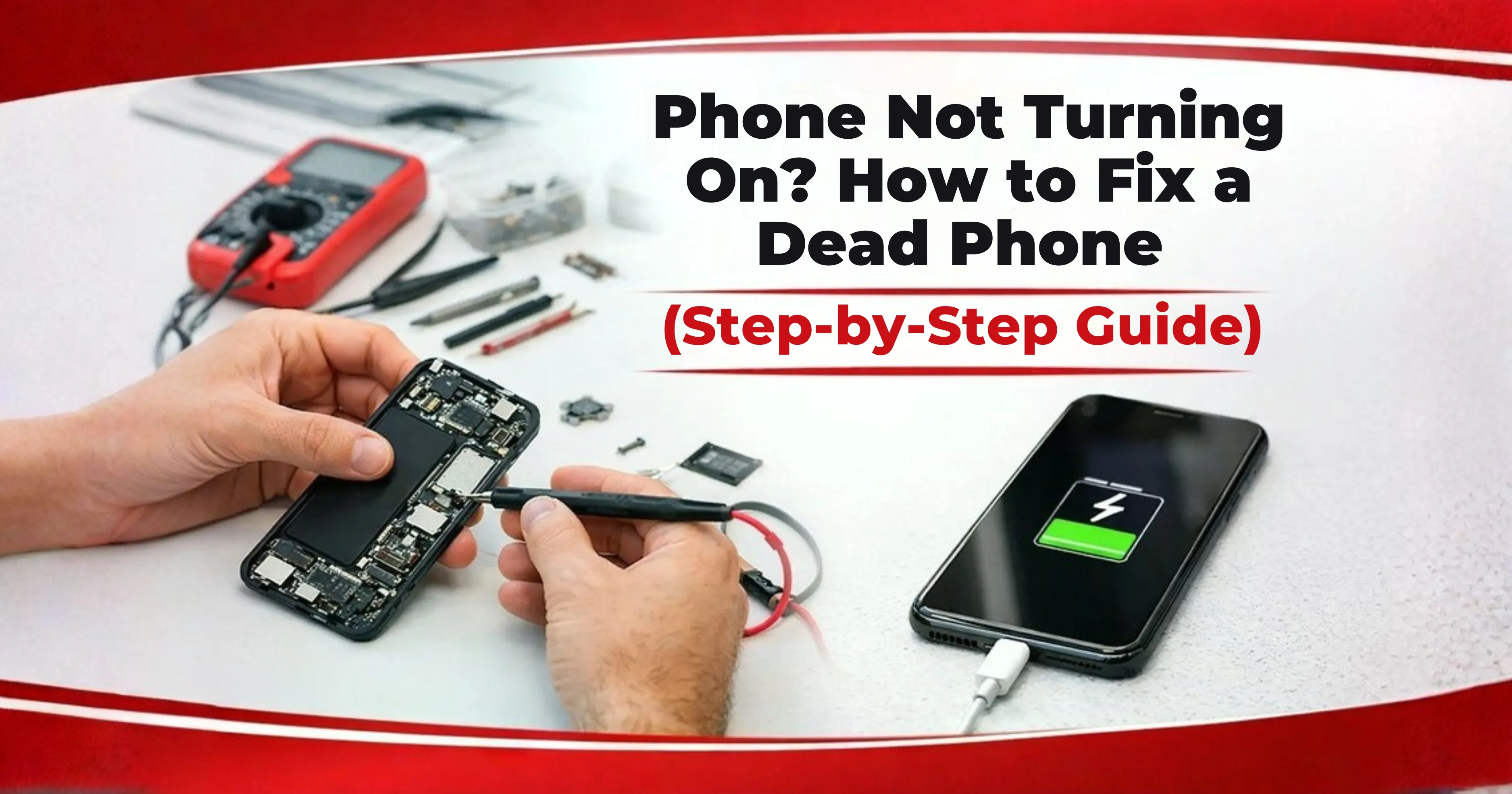
Phone Not Turning On? How to Fix a Dead Phone (Step-by-Step Guide)
A phone that suddenly stops turning on can feel like an emergency, especially when your data, banking apps, photos, or work files are on it. The good news is that many “dead phone” cases are caused by simple issues like charging problems, deep battery discharge, or a frozen system.
To fix a dead phone fault, first confirm if it's truly dead or only a black screen, then test the charger/cable, do a force restart, charge properly for 3060 minutes, clean the charging port safely, and try basic software recovery (if the phone shows a logo). If the phone overheats, smells burnt, swells, or has water damage, stop DIY and visit a repair shop.
This guide is beginner-friendly for the general public and useful for technicians as a quick troubleshooting checklist.
What Does a Dead Phone Fault Mean? (Symptoms & Quick Diagnosis)
A dead phone fault generally means the phone shows no sign of power: no vibration, no charging icon, no LED light, no logo, and no sound or response.
However, many people confuse a dead phone with:
- black screen issue (phone is ON, but the display is OFF). Here's a guide on How to Fix an Android Phone Black Screen Step-by-Step Repair Guide
- boot loop (logo appears, but phone doesn't start)
- charging issue (phone is alive but not charging)
A dead phone fault usually means the device shows no signs of power, no charging symbol, vibration, logo, or response. Causes can be a battery, a charging port, a power IC, or a software crash.
60-Second Quick Diagnosis (do this first)
- Press the power button for 5 seconds any vibration/sound?
- Plug into a charger, any charging icon/LED?
- Call your phone from another phone, does it ring/vibrate?
- Connect to a PC, does the computer detect it?
Step-by-Step Dead Phone Troubleshooting
If your phone feels very hot, smells burnt, or the back panel is bulging, stop charging immediately and go to a technician. When your phone doesn't turn on, avoid these common mistakes that can make it worse.
Don't do these “quick hacks.”
- Don't use unknown high-voltage chargers or cheap adapters
- Don't heat the phone with a hairdryer or keep it near a fire
- Don't puncture or press a swollen battery area
- Don't charge the phone if it has water damage or is still wet
- Don't repeatedly press buttons aggressively for long periods
- Don't open modern sealed phones unless you are trained (risk of damage + void warranty)
Here's a step-by-step mobile repair solution. If your phone is truly not turning on, start with the simplest solutions. Many “dead phone repair” cases are actually power supply issues.
Step 1: Test charger, cable, and power source
Why this helps: Faulty cables are extremely common in India due to bending and loose connectors. This is the most common fix.
- Try a different wall socket
- Try another charging cable
- Try another adapter (preferably original/brand-certified)
- If you have a power bank, test charging from it too
- Check whether the charger plug is loose
Step 2: Force restart (works for frozen phones)
Sometimes the phone is internally powered on, but the system becomes frozen, making the screen appear unresponsive. A force restart can help reset the device and bring it back to normal.
General method (Android):
- Hold Power + Volume Down for 1020 seconds (common on many Android phones)
General method (iPhone):
- Newer iPhones typically use a quick volume sequence and side button hold (varies by model). If you're unsure, use Apple's model-specific steps.
If the phone vibrates or shows a logo, it was likely a software freeze.
Step 3: Charge properly
If the battery is deeply discharged, the phone may not respond instantly. Good sign: If the phone shows a battery icon or LED light after some time, it's receiving power.
- Plug into a reliable charger
- Leave it charging for 3060 minutes
- Don't keep turning it on every 2 minutes
- After 30 minutes, try a force restart again
Dead phone quick fix checklist (5 minutes)
Swap cable + adapter, Change the power socket, Force restart, Charge 3060 minutes
without interruption, or Try another charger/power bank. If basic steps don't work, the issue may be the charging port, battery, or display, not necessarily the motherboard.
Step 4: Check and clean the charging port safely
In India, dust + pocket lint is a major reason for “phone not charging” and dead phone faults. If the cable doesn't fit properly or feels loose, the port may be damaged. Safe method:
- Turn the phone off (if possible)
- Use a dry wooden toothpick or soft brush carefully
- Do NOT use metal pins (risk of short circuit)
- Do NOT pour water, sanitizer, or oil into the port
Step 5: Deep discharge battery scenario (battery went too low)
If nothing happens, the battery may be damaged, or the charging circuit may be faulty. If your phone stayed at 0% for a long time:
- Charge it longer (up to 6090 minutes on a stable charger)
- Try a different charger after 30 minutes
- Avoid switching chargers repeatedly every few minutes
Step 6: Is it dead or just a black screen?
If the phone seems “alive,” you may have a display issue rather than a dead phone fault. Sometimes the screen fails, but the phone is running. Try:
- Call your number, does it ring?
- connect to a computer does it detect the phone?
- Check for vibration when you press the power button
- Listen for notification sounds
Stop DIY and go to a repair shop if:
- The phone overheats quickly when charging
- The phone shows “no charging” with multiple chargers
- battery swelling/bulging appears
- You suspect water damage
If your phone shows a logo or vibrates but won't boot fully, software might be the cause.
When software is likely the issue
- Phone died after an update
- Storage was full before shutdown
- The phone was lagging, and then it turned off
- It shows the logo, but gets stuck
Android: Recovery mode basics (high-level)
On Android phones, Recovery Mode is a built-in troubleshooting tool that can help fix certain software problems when the device won't start normally.
Depending on the model, you can enter recovery mode using button combinations (often power + volume).
Options you may see:
- Reboot System now: Restarts the phone normally. This should be the first option you try.
- Wipe cache partition (can help, usually doesn't delete personal data)
- Factory reset/wipe data (last option can erase data)
iPhone: Recovery mode/restore (high-level)
If an iPhone is stuck on the Apple logo or won't boot, or won't start after falling in water, Recovery mode restore via a computer, and Fixing a Water-Damaged iPhone: Expert Repair Tips That Actually Work can help, but it may update or reset depending on the method.
Data warning:
Factory reset/restore can erase data. If your
data is important, consider professional service first, especially if the phone shows signs of life.
If the phone shows a logo but won't start, recovery mode steps may fix a software crash. Factory reset should be the last option because it can erase data.
Common Hardware Causes of Dead Phone Fault (Technician View)
For technicians and advanced readers, here are common root causes when the phone is truly dead.
|
Battery failure or BMS issues |
Charging IC/Power IC (PMIC) failure |
Charging port/flex cable damage |
Short circuit/water damage |
Motherboard-level issues |
|
Battery health is very low |
The phone shows no charging response |
loose port |
The phone heats quickly |
PMIC/CPU/RAM related faults |
|
The battery protection circuit is damaged |
The phone draws an abnormal current |
broken pins |
corrosion near the charging port or board |
requires professional diagnosis, tools, and micro-soldering |
|
The battery doesn't accept a charge |
power section short or IC heating |
damaged sub-board |
The device becomes dead after exposure to water |
How technicians usually test
Professional technicians use several diagnostic methods to identify the root cause of a dead phone fault:
- Visual inspection checking the motherboard and components for corrosion, burn marks, or physical damage.
- Multimeter testing used to detect short circuits or abnormal voltage in the power line.
- DC power supply testing helps measure current draw to determine whether the phone is consuming power normally.
- Thermal tools used to identify overheating components that may indicate a short circuit or faulty IC.
When to Visit a Mobile Repair Shop
Visiting a Mobile Repair shop is not always recommended unless some cases should not be handled at home. In case you notice the red flags mentioned below, go to a technician immediately.
- battery swelling or back panel bulging
- burning smell or smoke
- The phone becomes very hot while charging
- water damage (even if it looks dry)
- The phone is dead after a drop/impact
- Repeated failure with multiple chargers and cables
Prevent Dead Phone Issues in the Future
Prevention is easier than repair, especially for batteries. Best practices for Indian conditions.
Best practices to prevent dead phone problems:
- Use certified chargers and avoid extremely cheap or low-quality adapters.
- Avoid deep battery discharge frequently. Try not to let your phone remain at 0% for long periods.
- Keep the charging port clean and dry to prevent dust or lint from blocking the connection.
- Avoid charging in very hot environments, such as inside a car dashboard or under direct sunlight.
- Do not use the phone heavily while charging, as this increases heat and battery stress.
- Maintain enough storage space, since extremely low storage can cause system crashes or freezing.
- Back up important data regularly using services like cloud storage or computer backups.
Conclusion
A useless smartphone fault can be disturbing, but many cases are because of easy problems, which include a defective charger, a deeply discharged battery, or a frozen machine. By following simple troubleshooting steps like checking the charger, performing a force restart, and permitting the right charging time, you can frequently revive the phone without expert repair.
However, if the device overheats, indicates battery swelling, has water damage, or stays absolutely unresponsive, it is safer to visit a qualified cellular repair technician.
Understanding those early warning symptoms and maintaining correct charging habits can assist prevent future lifeless cellphone issues and keep your tool running reliably.
Frequently Asked Questions (FAQs)
This usually happens due to a faulty cable/adapter, clogged charging port, deep battery discharge, battery failure, or power IC issues. Start by swapping the charger and cable, charging for 30–60 minutes, and trying a force restart. If it still shows no sign of life, visit a technician for battery/charging circuit testing.
Call your phone from another device or connect it to a computer. If it rings, vibrates, or gets detected on a PC, it may be a display issue rather than a dead phone. If there is no vibration, no charging symbol, and no detection, it’s more likely a dead phone fault.
The quickest approach is: try a different charger/cable, do a force restart, and charge continuously for at least 30 minutes. Many “dead” phones are either frozen or deeply discharged.
Sometimes, yes, if it’s deeply discharged, stable charging for 60–90 minutes may bring it back. But if the battery is damaged or has very low health, it may not recover and may require replacement. Never try unsafe “battery jump” hacks at home.
Stop DIY if the phone overheats, smells burnt, has swelling, shows water damage signs, or remains unresponsive after multiple chargers/cables and a proper charging attempt. These cases may involve battery risk or motherboard/IC faults.
No. Many dead phones have simpler issues like a bad battery, charging port damage, or charging IC faults. Motherboard issues are possible, but they are not always the reason.
Costs vary by brand and fault type. Battery and charging port issues are usually cheaper than power IC or motherboard repairs. Ask for a diagnosis and estimate before any work, and confirm if the shop provides a service warranty.